How to Add a Free Shipping Bar on Your Shopify Store
Adding a free shipping bar to your Shopify store is an effective way to encourage customers to make a purchase. Let me show you how simple it is to set one up using the Libautech Announcement Bar app.
Step 1: Install the Libautech Announcement Bar App
First, go to the Shopify app store and install the Libautech Announcement Bar app. This app allows you to create and customize bars for announcements, including free shipping offers.
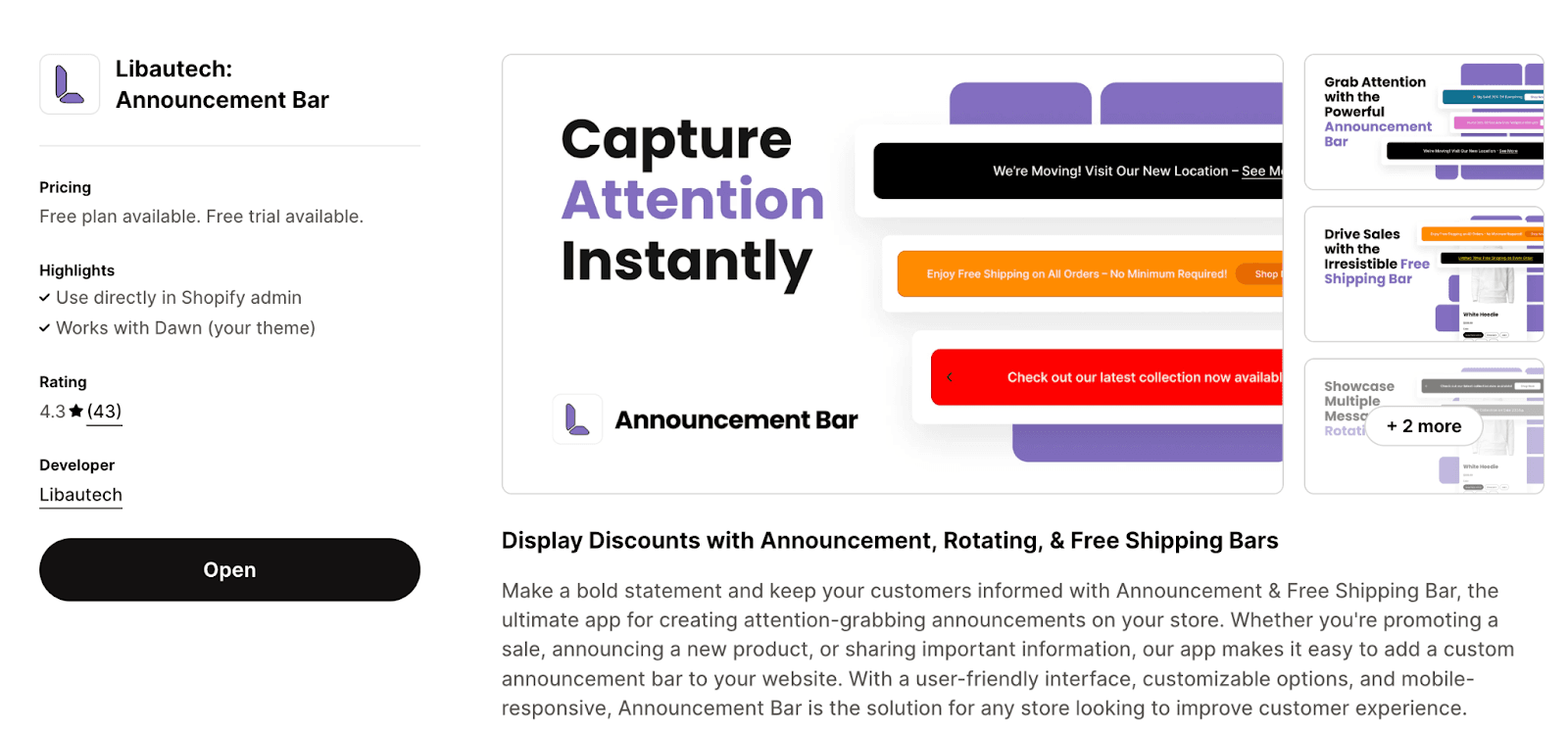
Step 2: Create Your Free Shipping Bar
After installing the app, follow these steps:
- Create a New Bar – In the app, select the option to "Add Bar."
- Choose the Bar Type:some text
- If you want to offer free shipping on all orders, choose the Announcement Bar.
- If free shipping is based on a certain cart value (e.g., when customers spend over a specific amount), select the Free Shipping Bar.
- Write Your Message – For free shipping on all orders, type in a message like “Free Shipping on All Orders.”
- Customize the Bar – You can customize the appearance of the bar by selecting a template that matches your store's design. You can also adjust the font size, bar size, and position (top or bottom of the page).
Optional Button – If you want to make the bar clickable or add a button, you can do so, but it's optional. If you prefer to keep it simple, remove the button.
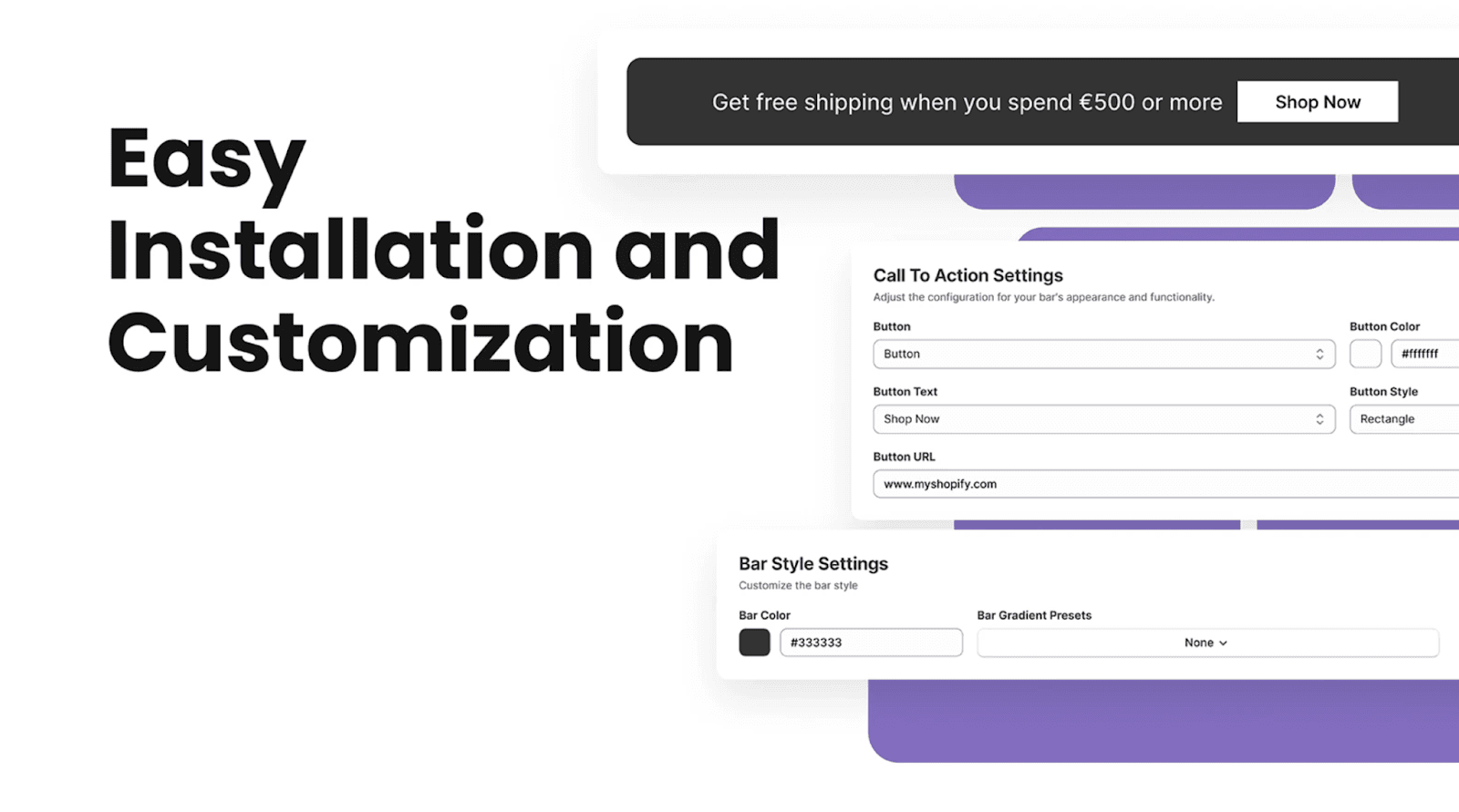
Once you’ve customized the bar to your liking, save your settings.
Step 3: Enable the Bar
After creating and customizing your free shipping bar, enable it in your store’s theme. This ensures that the bar will appear to customers when they visit your website.
Step 4: Set Up a Free Shipping Discount
Now that your bar is ready, you'll need to create the actual discount for free shipping:
- Go to the Discounts Section – In your Shopify dashboard, navigate to "Discounts."
- Create a New Discount – Select "Create Discount" and choose "Free Shipping Discount."
- Set the Discount Rules:some text
- This discount will be applied automatically.
- It can apply to all countries or specific countries, depending on your preference.
- Select Eligible Products – You can apply the free shipping discount to all products or only specific ones. For a general store-wide discount, set it to apply when the customer buys at least one product.
Once you’ve completed the discount setup, save it.
Step 5: Test Your Setup
Before launching, make sure to test the free shipping bar and discount in your store’s checkout process. Add products to the cart and verify that the discount applies correctly.
Conclusion
That’s it! Adding a free shipping bar to your Shopify store using the Libautech Announcement Bar app is quick and easy. It’s a great way to boost conversions and encourage higher spending by offering your customers free shipping.
If you have any questions or need further assistance, feel free to reach out to us!
Good luck with your store!