How to Add a Free Shipping Bar to Your Shopify Store
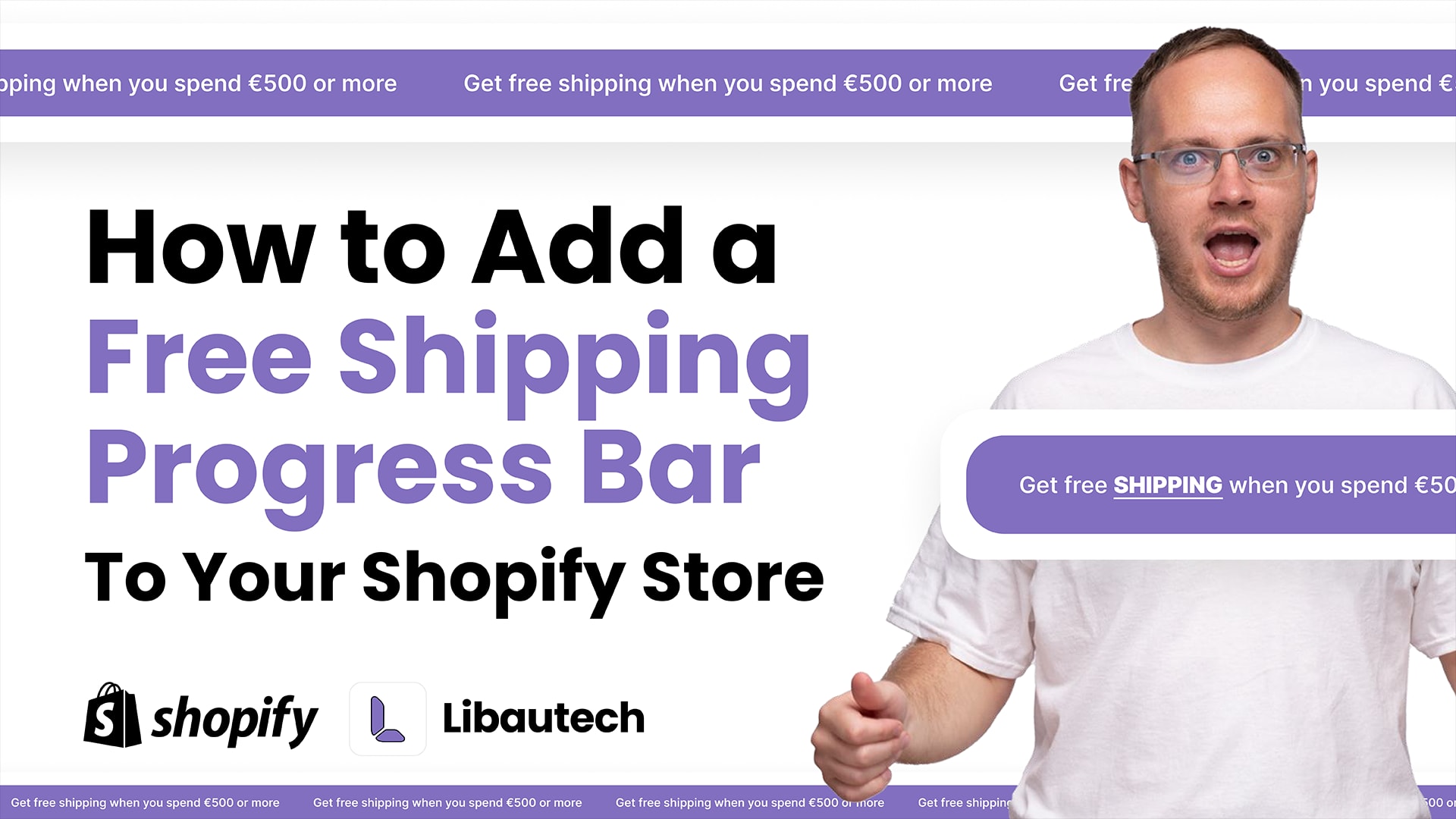
A free shipping progress bar is one of the highest-ROI additions to any Shopify store. It shows customers how close they are to unlocking free shipping, and research consistently shows this nudge increases average order value. In this guide, we'll walk you through exactly how to add one to your Shopify store using the Libautech Announcement Bar app, with no coding needed.
Why a free shipping bar works
Free shipping is the #1 checkout incentive. Studies show that 93% of online shoppers say free shipping encourages them to add more items to their cart. A progress bar makes that incentive visible in real time, turning a passive offer into an active push toward a higher cart value.
The mechanism is simple: when a shopper sees "You're $12 away from free shipping," adding one more item feels natural and rewarding. Without the bar, that same shopper might check out with a lower cart and pay for shipping without realizing they were close to the threshold.
Even more importantly, the progress bar helps you communicate your offer clearly. Many stores offer free shipping but bury the threshold in fine print. The bar makes it impossible to miss.
Best practices before you set it up
Before going live, get your threshold right. A common mistake is setting the free shipping threshold too low (you lose margin) or too high (customers give up). A good rule of thumb: set it at 10–15% above your current average order value. If your AOV is $45, a $50 or $55 threshold is a small enough gap that customers are motivated to reach it.
Keep your message short and specific. "Free shipping on orders over $50" is weaker than "You're $8 away from free shipping. Add one more item!" The second version shows progress and has a clear call to action.
Video tutorial
Watch the full walkthrough below to see the setup in action:
Step-by-step: Adding the free shipping bar with Libautech Announcement Bar
Step 1: Install the Announcement Bar app
Go to the Shopify App Store and install the Announcement Bar app by Libautech. It takes about 60 seconds to install and doesn't require any theme edits.
Step 2: Create a new bar and select the Free Shipping type
Open the app and click Add Bar. From the bar type options, select Free Shipping Bar. This activates the progress bar functionality with dynamic cart value tracking.
Step 3: Set your free shipping threshold
Enter the minimum order value required for free shipping. This should match your actual Shopify shipping settings. The app reads the live cart total and updates the bar in real time as items are added or removed.
Step 4: Customize your message
Write two versions of the message: one for when the customer is below the threshold (e.g. "Add $X more for free shipping!") and one for when they've reached it (e.g. "You've unlocked free shipping! 🎉"). The app swaps between them automatically.
Step 5: Style it to match your brand
Choose your bar color, font, and whether to show it at the top or bottom of the page. The bar is fully customizable. You can match it to your store's branding without touching a line of code.
Step 6: Activate and publish
Toggle the bar to active and save. It will appear immediately on your storefront. The whole process typically takes under 10 minutes.
Where to display the bar (and why it matters)
The announcement bar can be shown on your homepage, collection pages, product pages, or the cart page. For free shipping, the cart page is the highest-converting placement because that's where the customer is actively thinking about their order total. Displaying it on product pages is also effective, as it creates anticipation before checkout.
Many merchants show the bar on all pages so it's always visible, which reinforces the offer throughout the entire browsing session. The Announcement Bar app lets you set different placements per bar, so you can run tests to see which placement drives the most add-ons for your specific store.