How to Cancel Your Shopify Subscription (2026 Guide)

Thinking of deactivating your Shopify store? Although we encourage you to keep pushing forward and try different strategies to grow your online business, sometimes it’s necessary to take a break or move in a different direction. Thankfully, Shopify makes the cancellation process straightforward, with options to pause your store or close it completely. Here’s a step-by-step guide to help you through the process in 2024.
Step 1: Consider Your Options Before Cancelling
Before completely deactivating your Shopify store, take a moment to review all options. Shopify offers a "Pause and Build" plan that allows you to keep your store partially active for a reduced fee. This plan lets you maintain your store and customer data, so when you're ready to return, you can pick up where you left off without rebuilding from scratch.
Common Scenarios to Consider Before Canceling:
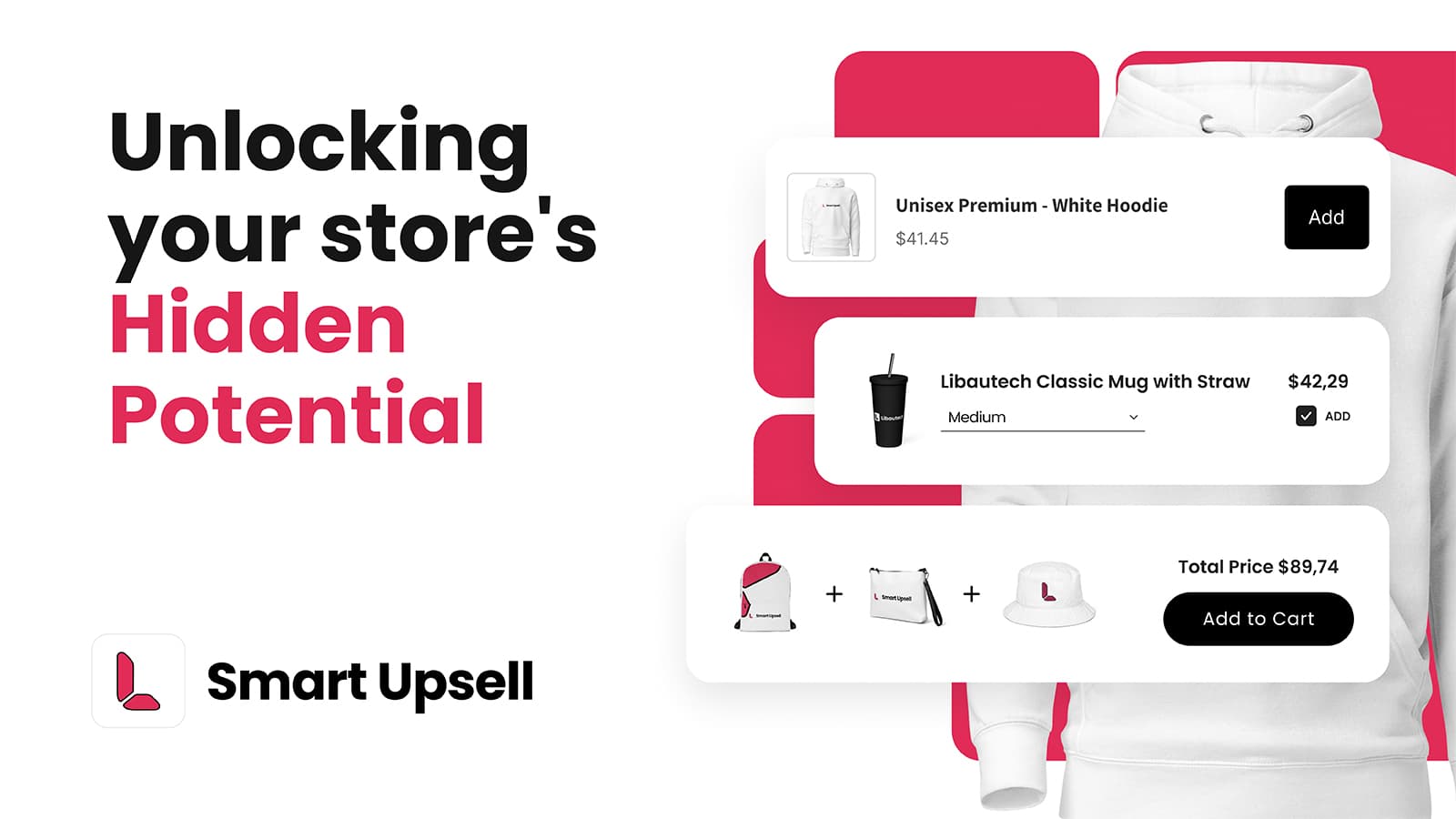
- Slow Sales or Profit Issues: If sales are low, consider using apps like Libautech Smart Upsell to increase order value by offering related products or bundles.
- Traffic but No Sales: Sometimes, a few tweaks in marketing, SEO, or even adding product reviews can help convert traffic into sales.
If you've tried these tactics and still wish to proceed with cancellation, follow the steps below.
Step 2: Go to Your Shopify Settings
- Log into Your Shopify Dashboard: Access your store as you normally would.
- Navigate to Settings: In the lower-left corner of the dashboard, click on “Settings.”
- Select "Plan": In the Settings menu, locate and click on “Plan.” Here, you’ll see details about your current plan, billing, and options to pause or deactivate your store.
Step 3: Choose “Deactivate Store”
- Select "Deactivate Store": Under your plan details, click on the option to “Deactivate store.”
- Choose an Option: Shopify may present a few choices:some text
- Pause and Build: For a reduced monthly fee, you can keep your store’s backend accessible, allowing you to work on it without making it public.
- Deactivate Store: This will close your store completely, though Shopify will retain your data for two years in case you decide to return.
- Confirm the Deactivation: Shopify will ask you to confirm the cancellation and may prompt you to provide feedback.
Step 4: Confirm Cancellation and Save Your Data
Once you select "Deactivate Store," your store will officially be closed, but Shopify will keep your data (including products, customer information, and settings) for up to two years. This allows you to return to Shopify in the future without starting from scratch.
Reopening Your Store (If You Change Your Mind)
If you decide to return, simply log in with your existing credentials. You can reactivate your store with a new subscription plan, and all your saved data will still be there.
Tips for Boosting Sales Before Deactivating
If you’re considering deactivation due to slow sales or low profitability, try these tactics:
- Optimize Your Product Pages: Ensure your product descriptions are clear, include quality images, and use SEO keywords to improve search visibility.
- Use an Upsell App: Adding an app like Libautech Smart Upsell app can help you encourage customers to buy additional products, boosting your average order value.
- Run a Promotion: Offering a discount, free shipping, or a bundle deal can help drive conversions. Consider seasonal promotions to boost interest.
Final Thoughts
Cancelling your Shopify store is simple, and Shopify gives you the flexibility to pause or fully close your store based on your needs. Whether you’re taking a break or pivoting to a new business idea, this guide will help you navigate the process. Remember, if you ever want to come back, Shopify makes it easy to pick up where you left off.
If you have any questions about cancelling or about maximizing your Shopify store’s potential, feel free to leave a comment below!