How to Add an Amazon Buy Button to Shopify (2026)
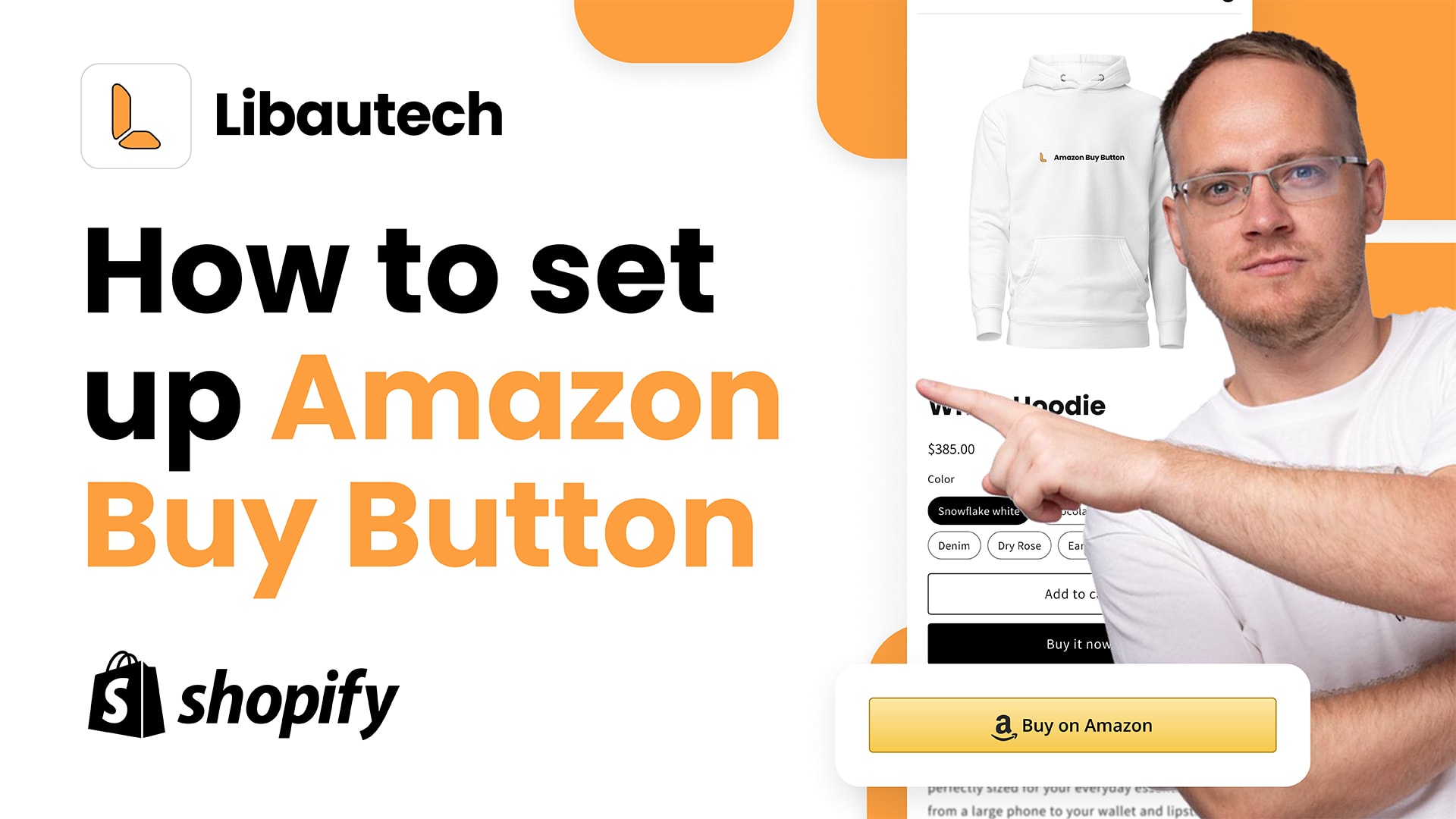
Adding an Amazon Buy Button to your Shopify store is a powerful way to give customers additional buying options, especially for those who prefer to purchase through Amazon. With the Libautech Amazon Buy Button app, integrating this feature into your Shopify store is straightforward. Follow this guide to get started!
Step 1: Install the Libautech Amazon Buy Button App
To get started, you’ll need to install the Libautech Amazon Buy Button app from the Shopify App Store. This app enables you to add a “Buy on Amazon” button to any product in your store, linking directly to its Amazon listing.
- Go to the Shopify App Store and search for “Libautech Amazon Buy Button.”
- Click Install and follow the prompts to connect the app to your Shopify store.
Once installed, you’ll see the app in your Shopify Apps dashboard.
Step 2: Select Products to Add the Amazon Buy Button
After installation, the next step is to choose the products where you want to add the Amazon Buy Button.
- Open the Libautech Amazon Buy Button app in Shopify.
- In the app, you’ll see a list of your store’s products. Select the product you want to link to Amazon.
- Once selected, you’ll be able to edit its settings to include the Amazon Buy Button.
Step 3: Add the Amazon ASIN or Affiliate Link
For each product, you need to add the unique ASIN (Amazon Standard Identification Number) or an affiliate link if you're using the Pro version:
- Find the ASIN on Amazon: Go to the product page on Amazon, locate the ASIN in the product’s details (usually found under the "Product Information" section).
- Paste the ASIN in the Libautech App: In the product edit section of the Libautech app, paste the ASIN in the designated field.
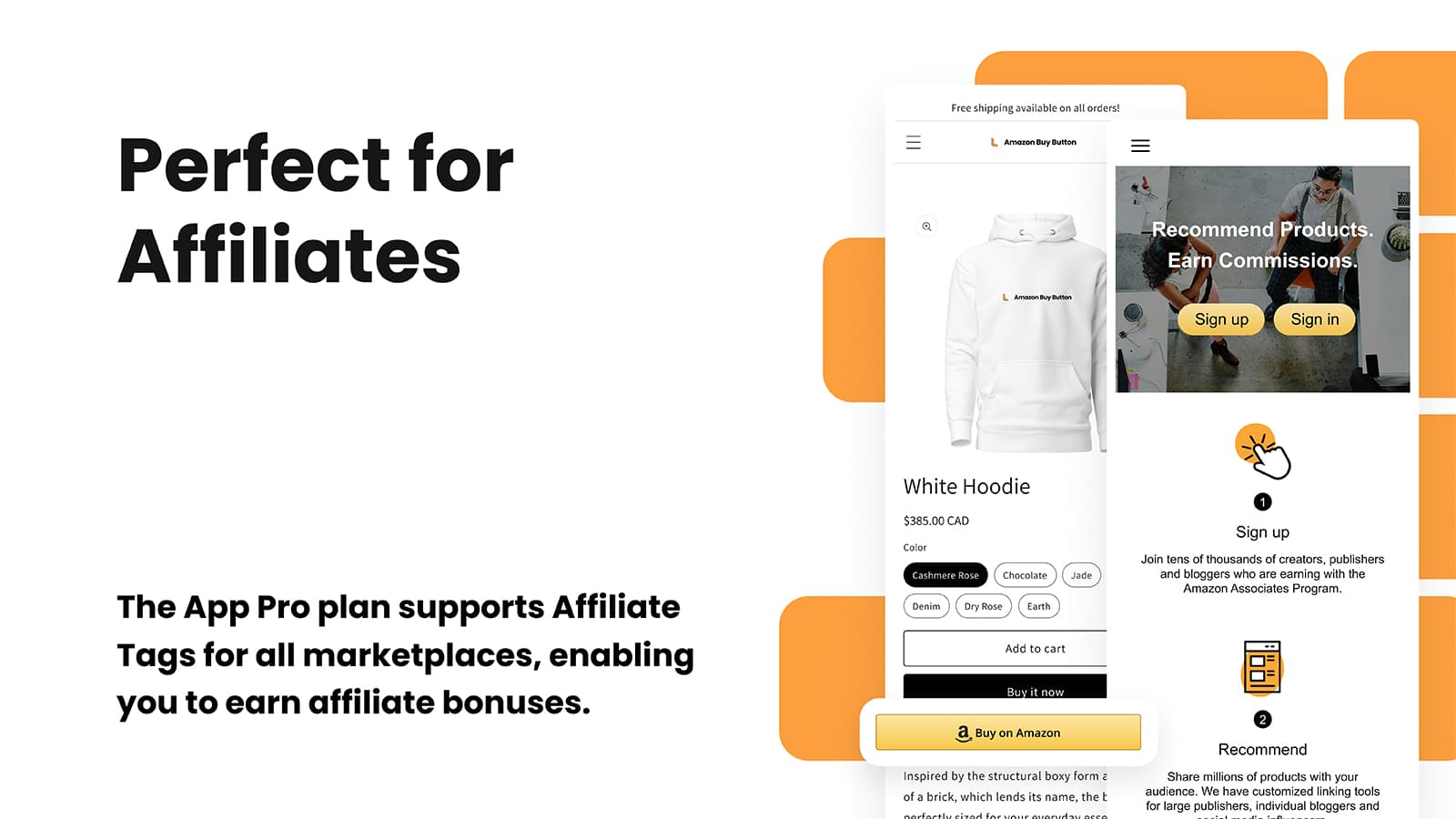
If you’re an Amazon affiliate, you can use your affiliate link instead to earn a commission on purchases made through this button. To do this, you’ll need to subscribe to the Pro plan of the Libautech app, which enables custom affiliate links.
- Upgrade to the Pro plan in the Libautech app.
- Add your custom affiliate link in place of the ASIN under the Affiliate Link option.
- Save your settings.
Step 4: Add the Buy on Amazon Button to Your Shopify Product Page
With your products set up, the next step is to add the Amazon Buy Button to your product page layout.
- Go to Online Store > Themes in your Shopify admin.
- Click Customize to open your theme editor.
- Navigate to your Product Page template, where you’ll be able to modify the layout.
- Under Add a Block, select Amazon Buy Button from the options provided by the Libautech app. Position it near the existing Buy or Add to Cart buttons for easy access.
This placement allows customers to see the Amazon button alongside your standard purchase options, giving them a choice of where to buy.
Step 5: Save and Test the Amazon Buy Button
After saving the changes, it’s time to test your Amazon Buy Button to ensure it works as expected.
- Preview your product page and click on the Buy on Amazon button.
- It should direct you (or the customer) to the corresponding Amazon product page via the affiliate link if applicable.
- Test on both desktop and mobile views to ensure a smooth customer experience.
Benefits of Adding an Amazon Buy Button to Your Shopify Store
- Increase Sales Options: Some customers prefer to purchase through Amazon due to trust or convenience, so offering this option may boost your sales.
- Earn Affiliate Commissions: If you’re part of the Amazon Associates program, you can earn commissions on qualifying sales by linking affiliate links to the Amazon Buy Button.
- Convenience for Customers: Providing direct access to Amazon products from your Shopify store can improve the customer experience by catering to their buying preferences.
Need Help?
If you have questions or encounter any issues while setting up the Amazon Buy Button, the Libautech support team is available to help. Reach out through the app for quick assistance on setup or troubleshooting.
By following these steps, you can add an Amazon Buy Button to your Shopify store quickly and easily. This added flexibility can enhance your store’s appeal and open up new income possibilities through affiliate links. Happy selling!